

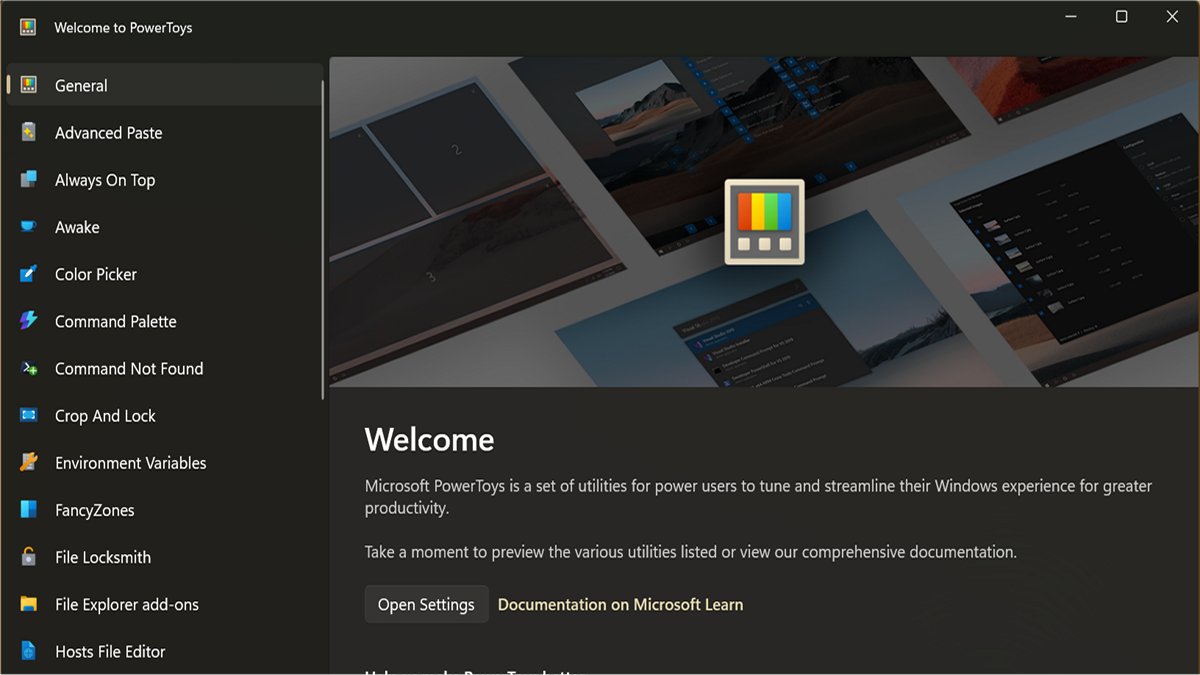
Want to get more out of Windows? Of course you do. Anyway, check out Microsoft PowerToys. It's a free, open-source collection of productivity utilities. You can rename files in bulk, color pick from anywhere on your screen, automatically switch between light and dark mode, and more. Some features are more niche than others, but you can customize your experience and only enable what you need.
I selected seven productivity tools that are always useful and fit every workflow. Once you try some of these, you can never go back.
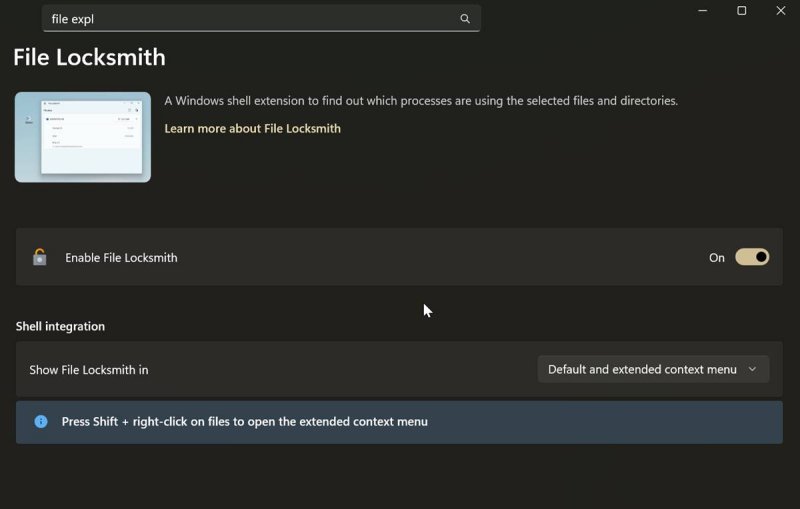
File Locksmith - Unlock files and folders in use
Have you ever tried to delete a file, only to see a pop-up window saying it's in use and you can't access it right now? If only there were an easy way to find out why it's blocked... Well, File Locksmith can help you with that. This shell extension can pinpoint all the secret Windows processes that are currently using your files or directories.
When you run it, it will scan all the processes and check which files they're using. You'll see a list, where you can end individual tasks or check their details. If they're being run by other users, you'll have to restart Locksmith as an administrator. Honestly, this feature should be included in Windows by default.
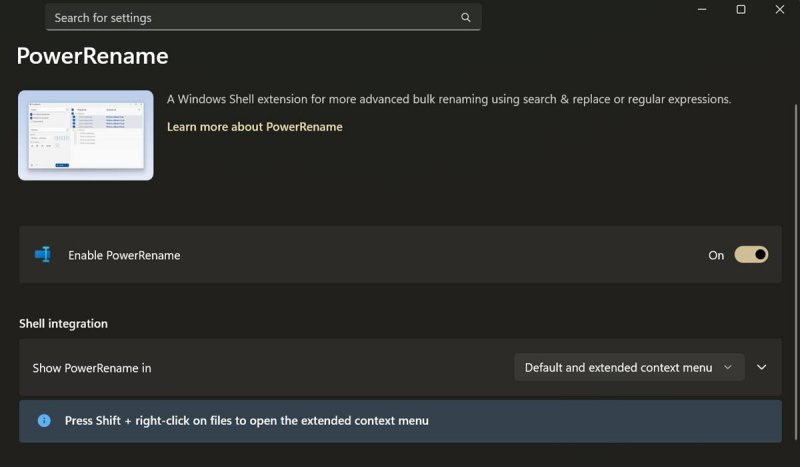
PowerRename - Rename files in bulk
Renaming files one by one is a mind-numbing task. With PowerRename, you can change multiple names at once. You can also search and replace only targeted sections, filenames, or extensions. Or, enumerate items and format text. It's crazy versatile!
PowerRename supports various renaming patterns and regular expressions, as well as auto-complete for the search & replace fields. Best of all, you can preview the expected changes and undo them even after they're completed.
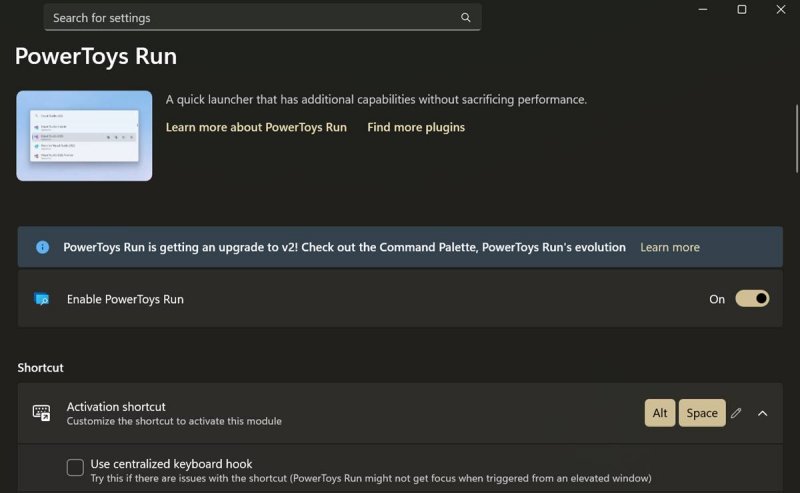
PowerToys Run - Multi-functional search bar
PowerToys Run is a quick launcher and search bar that you can enhance with various plugins. It's like Windows Search, but if it were actually good. You can easily search for apps, folders, files, and even running processes, all without web search results pestering you. PowerToys must be running in the background for it to work, though.
Moreover, thanks to the plug-ins, you can execute shell commands, system commands, and navigate the Registry. You can also use Run as a calculator and unit converter. It's like a Swiss Army knife for Windows. Command Palette is its successor with mostly the same talents, but it's still in development and has received mixed responses so far.
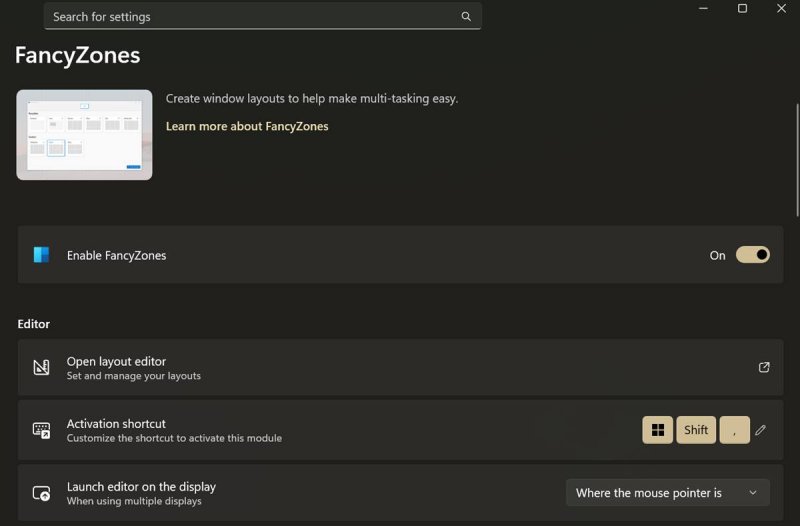
FancyZones - Window manager
You can create custom window layouts with FancyZones. It's a more powerful version of the default Windows Snap Layouts, with more control over different windows. You can snap them into zones with your mouse or keyboard shortcuts, and cycle between them.
Additionally, FancyZones supports horizontal and vertical splits. You can create custom layouts or use templates like focus, columns, rows, grid, and priority grid. The layout editor also lets you adjust the space around the zones. This utility is especially handy if you have a larger monitor, a multi-monitor setup, or if you're multitasking. A lot of streamers use it while juggling OBS, Discord, chat, and game windows.
Always On Top - Pin windows above others
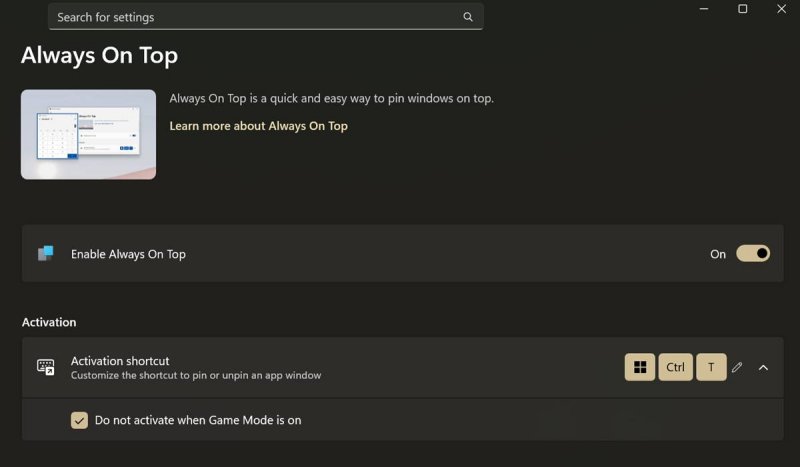
If your desktop is often crowded with multiple open windows, you should check out Always On Top. It helps you pin important windows on top of others, so they remain visible. Again, it's another feature that I can't believe isn't available in Windows by default.
You can activate it with a shortcut and turn it off while you're gaming. It has settings for borders around the pinned windows, color mode, opacity, thickness, and sound. You can also make a list of excluded apps you don't want to pin.
File Explorer add-ons - More file previews
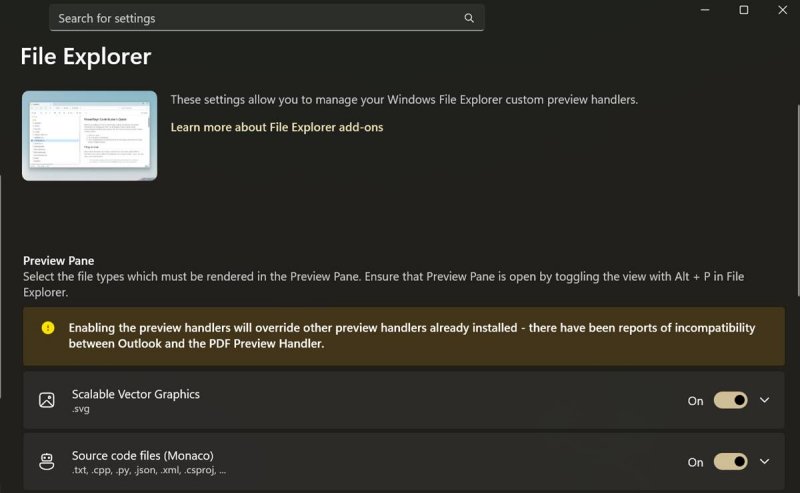
Improvements to File Explorer are always welcome in my book. With these add-ons, you'll be able to preview more file formats. This includes:
- SVG images (.svg)
- PDF files (.pdf)
- Markdown files (.md)
- G-code files (.gcode)
- QOI images (.qoi)
- Source code files (.cs, .cpp, .rs, ...).
You can also enable thumbnail previews. It's simple and perfectly integrated with the default Preview pane on Windows 11.
Workspaces - Quick-launch workspace apps
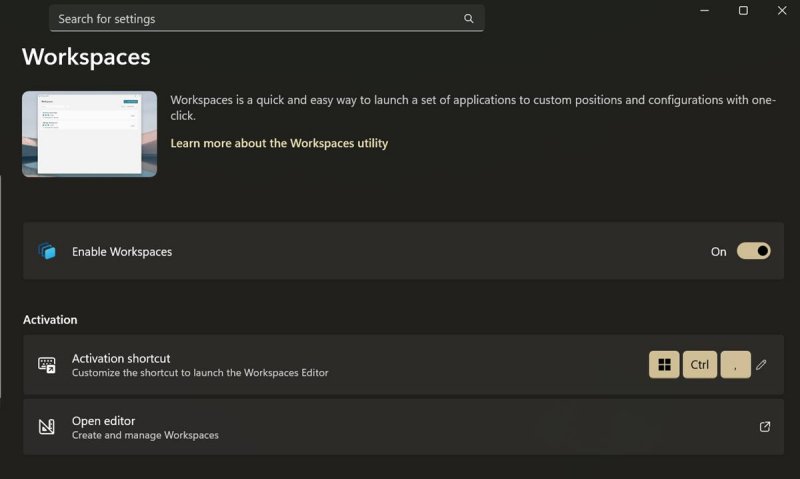
If you're tired of re-launching the same programs one by one every time you get to work, this feature is for you. With it, you can save specific app configurations, click on the workspace, and ta-da! All your apps will be set up at once, so you can immediately get to work on your projects.
While capturing your screen state, you can reposition and arrange the programs. You can then name the workspace, create a desktop shortcut for it, and adjust window sizes in the layout editor.
Overall, these productivity apps are a welcome addition to every power user's toolbox. They're part of our Windows must-have programs list for a reason. And the best part is they're completely free. You can always uncheck what you don't need in PowerToys, so you don't get bogged down with too many options.


