


OneDrive's folder backup feature is usually more trouble than it's worth. It's designed to back up the contents of your local Documents, Pictures, Videos, Music, and Desktop folders. Sounds simple enough in theory, but it can get messy.
When you enable this feature, the files from the backed-up folders are moved to OneDrive folders with the same name and synced to your cloud account. For example, everything from C:\Users\Documents will move to C:\Users\OneDrive\Documents. Microsoft will even push you to enable it, aggressively so, while you're clean installing Windows 11. Considering you only have 5GB of cloud storage on the free account, it's going to fill up quite quickly.
Unless you want to subscribe and get more storage (which is what this whole scheme is all about), you should turn off folder backup syncing. I'll show you how below, so read on!
Turn off folder backup sync via OneDrive settings
You'll need to be signed into OneDrive with your Microsoft account to make these changes. Here are the steps:
- Open OneDrive by clicking on its system tray icon. (If you've previously taken it off your taskbar, right-click it, select Taskbar settings, and expand Other system tray icons. Toggle on OneDrive.)
- Click the cog icon and select Settings.
- While in Sync and backup, click on the Manage backup button.
- You should see a list of folders. Toggle off the ones you don't want to back up.
- You'll be asked to confirm your decision for the Pictures, Videos, Music, and Documents folders. Click OK.
- For the Desktop folder, you'll have to select This computer only, then click Continue.
- Again, click OK when OneDrive confirms that backup has stopped for a specific folder.
- You may be asked to provide feedback and explain why you disabled the feature (ugh). Click Close on the backup window when you're done.
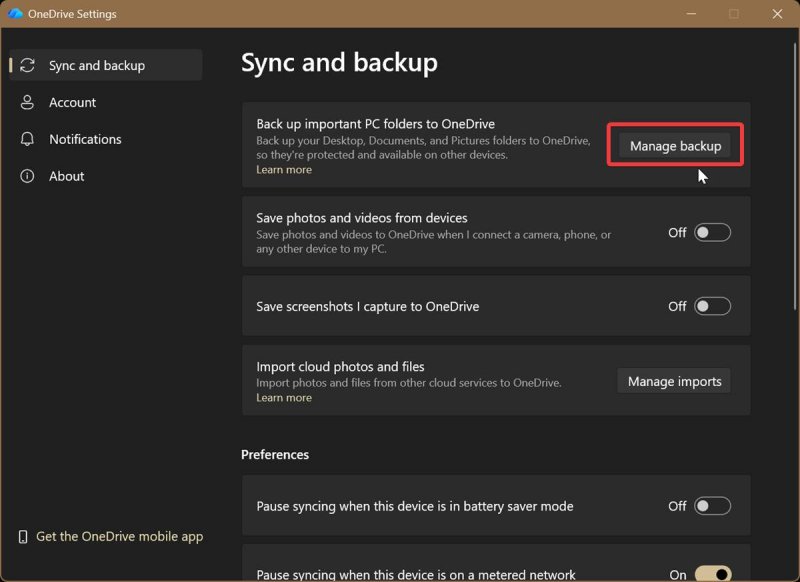
You can also disable Save photos and videos from devices and Save screenshots in this section.
Alternatively, you can reach the same options by doing this:
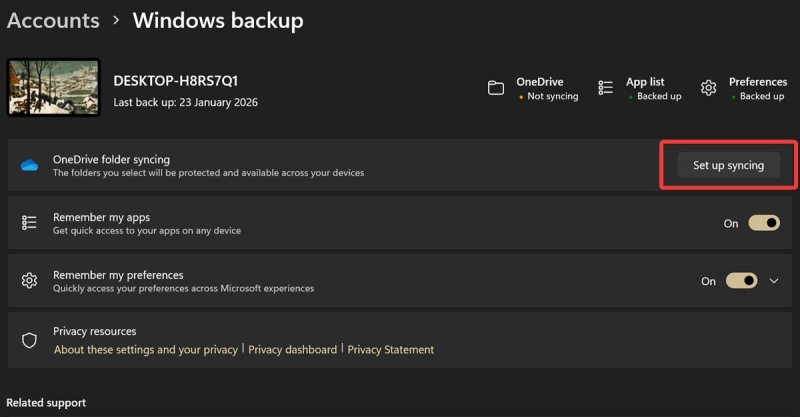
- Go to Settings > Accounts > Windows backup.
- Click the Set up syncing button next to OneDrive folder syncing. This should take you right to the Manage backup section we covered earlier. The rest of the steps remain the same.
Exclude file extensions from backup
Additionally, you can specify which extensions won't get backed up:
- Open OneDrive, click the cog icon, and select Settings.
- In the Sync and backup menu, scroll down and expand the Advanced settings.
- Hit the Exclude button.
- Type what you want to leave out in the Extension box, and click the Exclude button again.
- You can always click the X next to extensions you no longer want to exclude.
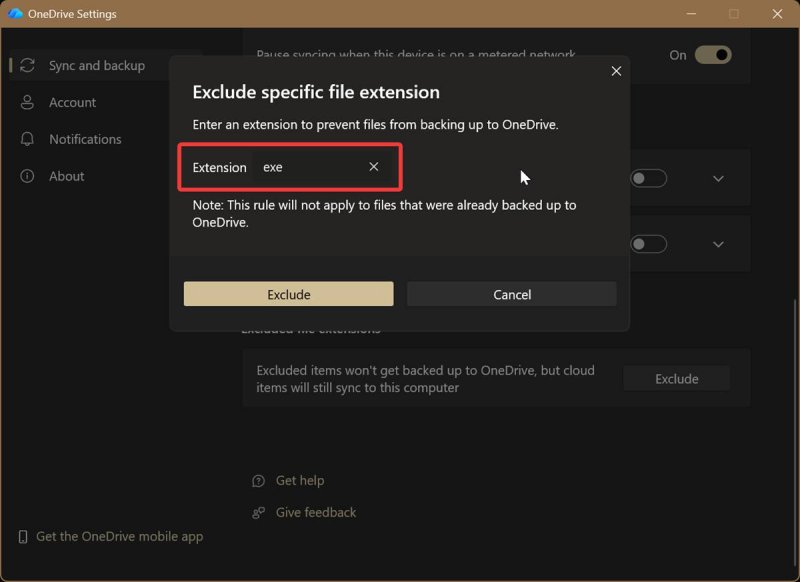
These rules won't apply to files that have already been backed up, so keep that in mind.
After disabling folder syncing, you can just move your files back to your local folders. Don't worry, they didn't get deleted in the process.
You also might want to occasionally keep an eye on the feature, as some users have reported it automatically re-enabling itself. If OneDrive keeps being annoying, which is highly likely, you can look into other backup solutions.


