

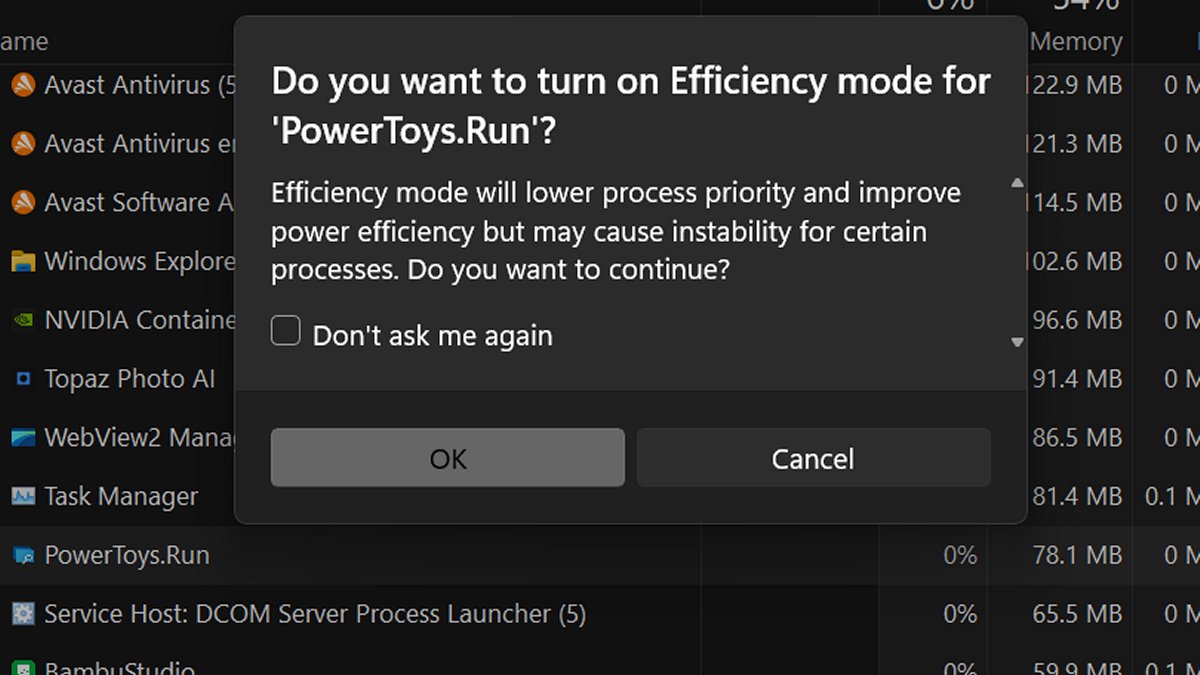
Windows 11 includes a built-in feature called Efficiency Mode that can help speed up a sluggish PC by limiting the CPU and RAM certain apps can use. This matters more than ever because upgrades for RAM, Drives, GPUs, and CPUs are pricy right now, and many modern laptops do not even allow upgrades.
Sometimes it just isn't an option to throw money at hardware to solve a problem. Efficiency Mode helps you squeeze more performance out of the system you already own by keeping resource-hungry background apps under control.
What Is Efficiency Mode in Windows 11?
Efficiency Mode is part of the Windows 11 Task Manager and is designed to prevent apps from using more system resources than they actually need. Many programs are designed to continue to run in the background for syncing, update checks, telemetry, or helper services, even when you are not actively using them.
When you enable Efficiency Mode, the Windows operating system lowers the app’s CPU priority and limits how aggressively it uses system resources. This allows Windows to focus on the apps you are actively working in, improving overall responsiveness.
Efficiency Mode is not the Same as Changing Priority
In the Task Manager, you can also change an app’s priority. Something Efficiency Mode and Priority Mode are similar things, but they do very different things under the hood. When you change a process priority, you are only telling Windows how important that app is compared to others when the CPU is busy. It does not limit how much CPU the app can use, to reduce power usage, or directly affect memory behavior. A low-priority app can still spike CPU usage if the system is otherwise idle.
Efficiency Mode goes further. It can lower the priority but it actively throttles how aggressively a process is allowed to run. Windows will set a limit on execution, apply power-saving behavior, and schedule the app less often, even when resources are available for it. This makes the app behave like a background task instead of an active workload, not just change when it is allowed to execute. Efficiency Mode does not, however sirectly limit RAM usage. But, the reduced background activity often leads to lower memory usage over time and makes it easier for Windows to reclaim resources when needed.
Where it helps the most:
- Systems with 8 GB of RAM or less
- Laptops with lower-power CPUs
- PCs with lots of background apps (browsers, launchers, sync tools)
- Situations where Task Manager shows CPU spikes “for no reason”
How to Enable Efficiency Mode
Efficiency Mode does not change system files or apply permanent settings. If an app becomes slow or unstable, simply turn Efficiency Mode off for that process. Turning on (or off) Efficiency Mode takes only a few seconds:
- Press Ctrl + Shift + Esc to open Task Manager
- Click the Processes tab
- Right-click the app using excessive CPU or RAM
- Select Efficiency mode
The change happens immediately, no need to rebbot, and can be undone at any time.
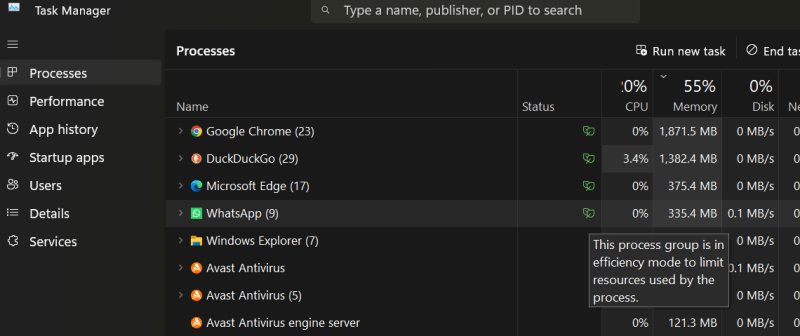
Once enabled, you will see a Green Leaf icon in the status column to indicate that Efficiency is active and working. This is nice because you don't have to remember which app you enabled previously. .
Programs That Are Good Candidates for Efficiency Mode
Efficiency Mode works best on apps that run in the background and do not require instant performance. These programs often use more resources than necessary while idle.
- Game launchers and update managers
- Cloud sync apps when not actively syncing
- Chat and messaging apps running in the background
- Tray utilities and helper services
- Software updaters and installers
- Media players that are paused or idle
- Backup software
These types of apps are ideal targets because throttling them frees up CPU time and resources without affecting your day-to-day work.
Programs You Should Avoid Using With Efficiency Mode
Some applications rely on full system access and should not be throttled. Enabling Efficiency Mode on these can cause slowdowns, glitches, or unstable behavior.
- Anti-virus and Anti-malware applicationss
- Games and game anti-cheat services
- Video editing or rendering software
- Audio recording and production tools
- Virtual machines and emulators
- Hardware monitoring or fan control utilities
That said, browsers are a common trouble spot, and I recommend you at least try enabling Efficiency mode to see how it works for you. I have had zero problems doing so and have seen decent improvement, specifically with browser chowing up RAM in the background. But people have reported that limiting the main browser process can cause slow page loads, delayed scripts, and choppy video playback. So see how it works for you. The worst case is you just turn it off.
When Efficiency Mode Makes the Biggest Difference
Efficiency Mode is most helpful when your system feels slow, even though nothing obvious is running. One or two background apps using excessive CPU can drag down the entire system.
It is especially effective on laptops, older PCs, or systems with limited RAM, and it can also help reduce heat and improve battery life by keeping background processes from running harder than necessary.
Bottom Line
Efficiency Mode is one of the newer Windows 11 features that quietly does its job and can make a real difference when used correctly on systems where optimizing is useful. With the cost of computing rising, squeezing a bit more out of your PC anywhere you can will help you keep your machine longer, and Efficiency Mode is one of the techniques you can employ with almost no effort. Efficiency Mode will not magically free memory or fix every slowdown, but it gives you smarter control over how apps behave in the background, helping Windows stay responsive using the resources you already have.


